There's a specific kind of CAD software that doesn't look like traditional CAD software at all. No mouse-driven sketch tools, no drag handles, no feature tree to click through. Just a text editor on one side and a 3D preview on the other. That's OpenSCAD — you describe the shape you want in code, and it builds it. Before any of that is useful, though, you need to install this application. This blog is separated into different parts. This part (the first one) covers exactly that: where to get OpenSCAD, and how to get it running on Windows, Linux, or a Mac.
Where it actually comes from
OpenSCAD's own site — openscad.org — is the download source worth using. It's free and open-source, and the same installation packages are used by Linux distributions, Homebrew, and Windows' package managers, so there's no meaningful difference between going straight to the source and using one of these installation options. Stay clear of third-party "download" mirrors that wrap installers in their own bundle package — a few of the older download-aggregator sites do this, and it's not worth the security risk for a free tool.
Windows
The stable release supports Windows 7 and newer, on both 32-bit and 64-bit systems — though if your machine is from the last decade, you want the 64-bit build without a second thought.
Two options on the downloads page: an .exe installer or a .zip package. The installer is the one to use unless there's a specific reason to want a portable, no-install version — the zip just unpacks OpenSCAD into a folder and runs from there, useful if you're deliberately avoiding installing anything system-wide.
For the installer:
- Download the 64-bit
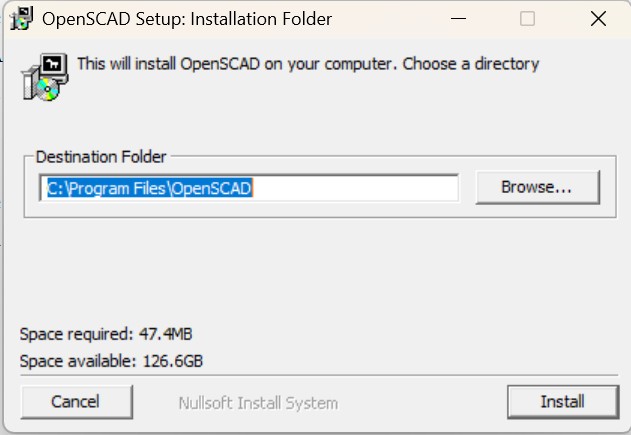
.exefrom the Windows section. - Run it and step through the wizard — default options are fine for a first install.
- Launch OpenSCAD from the Start menu once it finishes.
There's also a command-line route if you'd rather skip the browser entirely, using Windows' built-in package manager:
winget install --id=OpenSCAD.OpenSCAD -eThis pulls the same installer and runs it unattended.
Linux
This is the one place where "download OpenSCAD" isn't really the right mental model — on Linux, it's almost always a package your distribution already knows about.
Debian, Ubuntu, Kubuntu, and derivatives:
sudo apt-get install openscadFedora:
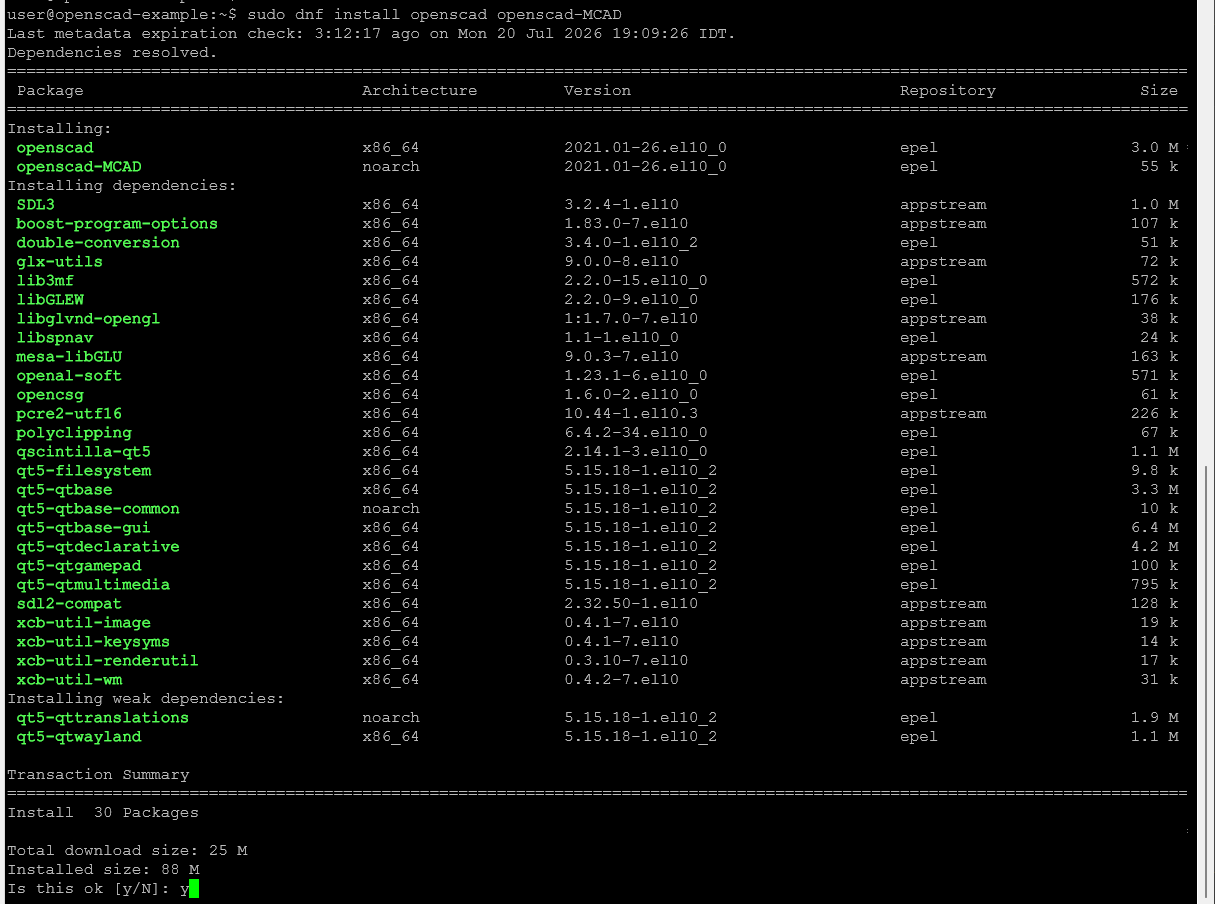
sudo dnf install openscadOlder Fedora systems may still use yum in place of dnf — the package name and behaviour are the same either way. If you also want the MCAD parts library — a common third-party library of mechanical shapes — include it in the same command rather than as a separate install, since MCAD is a library, not the application, and installing it alone won't pull OpenSCAD in with it:
sudo dnf install openscad openscad-MCADArch Linux:
sudo pacman -S openscadopenSUSE: available through software.opensuse.org rather than a one-line terminal command — worth a quick search there for the current package.
If your distribution's repository version lags behind (rolling releases aside, most distro repos update slower than OpenSCAD itself), there are two distribution-agnostic alternatives that sidestep the repo entirely:
- AppImage — a single downloadable file that runs directly with no install step at all. Download it, mark it executable (
chmod +x), and run it. Good option if you want to try OpenSCAD without touching your system package manager. - Flatpak / Snap — both are available through Flathub and the Snap Store respectively, and both sandbox the app similarly to how it'd run on Windows or Mac.
Mac
A note before this section: everything below is built from OpenSCAD's own documentation and download page, not from hands-on testing on a Mac. If a step doesn't match what you see, the download page itself (openscad.org/downloads.html) is the authoritative source — treat this as a guide, not gospel.
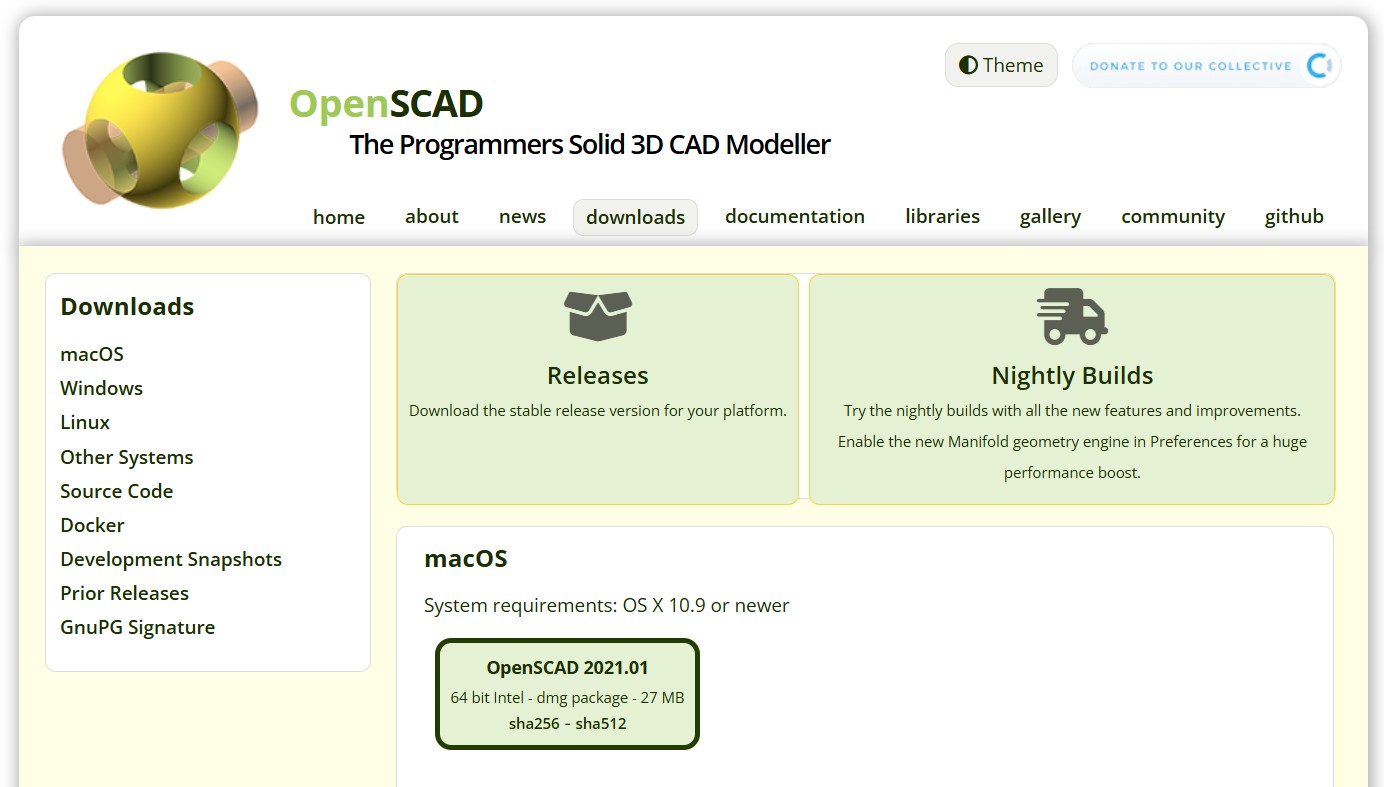
The stable release requires OS X 10.9 or newer, distributed as a .dmg package for 64-bit Intel Macs. (OpenSCAD's newer development/snapshot builds require macOS 11 "Big Sur" or later and are universal binaries covering both Intel and Apple Silicon — if you're on Apple Silicon and want to be sure you're getting a native build rather than running under Rosetta, that's the detail to check against whichever build you download.)
Standard .dmg install pattern:
- Download the
.dmgfrom the macOS section of the downloads page. - Open the file — it should mount as a virtual disk showing the OpenSCAD app icon.
- Drag the icon into your Applications folder.
- Eject the mounted disk, and launch OpenSCAD from Applications.
If you'd rather install via a package manager, OpenSCAD lists itself on both:
brew install openscadsudo port install openscadThe first is Homebrew, the second MacPorts. Worth double-checking the exact Homebrew formula/cask name against formulae.brew.sh at install time — package manager listings shift more often than the direct download page does, and this is exactly the kind of detail that's safest verified live rather than trusted from a written guide.
Confirming it worked
However you got there, the real test is the same everywhere: open OpenSCAD and see the default window — a text pane on one side, an empty 3D viewport on the other.
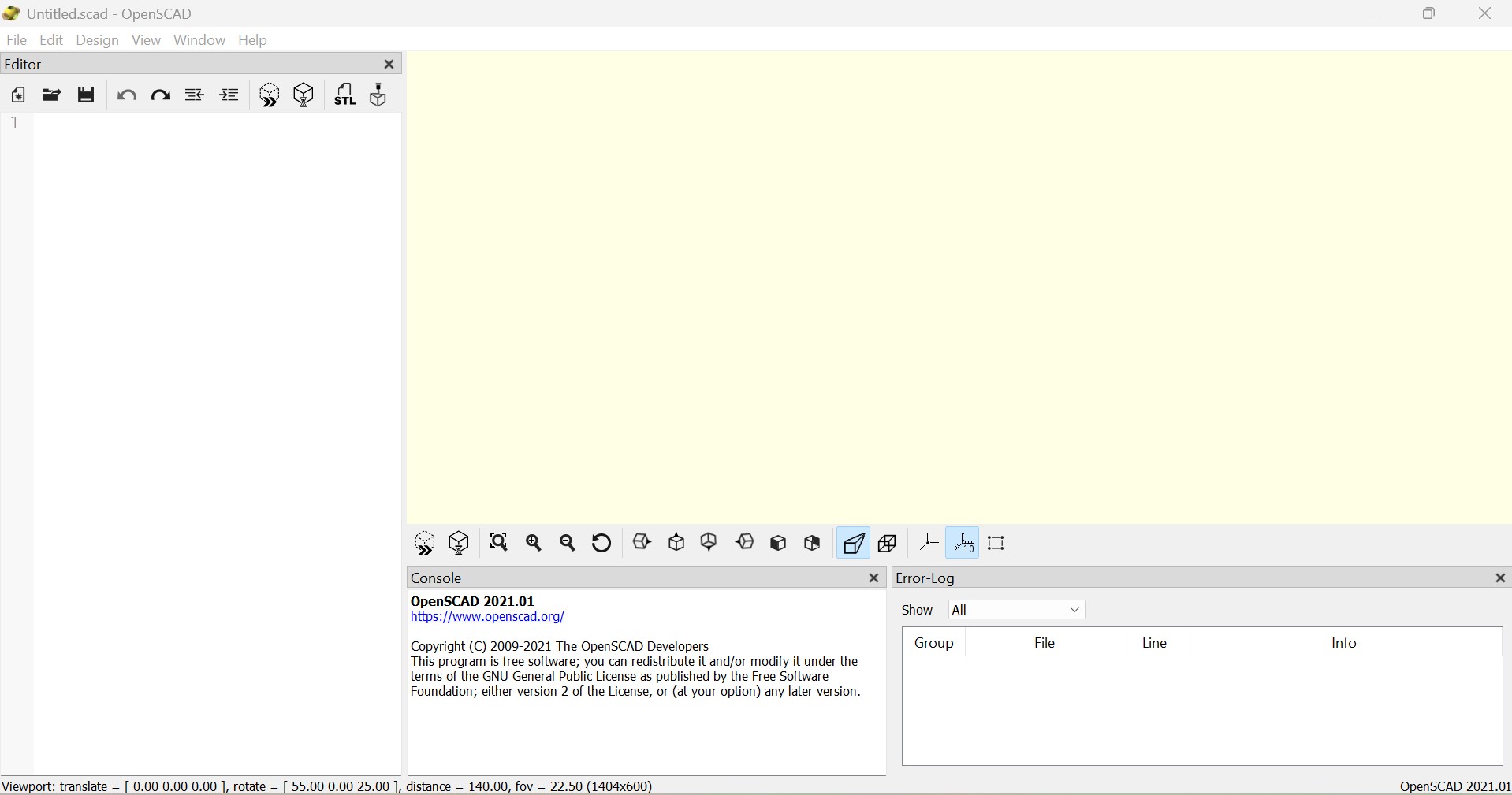
That's it — installed. Part 2 picks up from here: what's actually on screen, how the editor and viewport relate to each other, and the handful of things worth knowing before writing your first shape.